Selling at the Till — Point of Sale
Who this is for: Shop assistants, cashiers, and shop owners who serve customers every day.
This guide shows you how to open your till, ring up items, take payment, give change, and print a receipt.
What you need before you start
- Your till session must be open (see step 1).
- The products you want to sell must be in the system. If one is missing, you can add it without leaving the till (see step 3).
- For card or mobile-money payments you need internet. Cash sales still work offline.
A few words we use:
- Till session — your shift at a particular shop counter. You open it in the morning.
- Default Customer — used for quick walk-in sales when you do not need the customer name.
- Tendered / Due / Change — what the customer has paid so far, what is still owed, and what you hand back.
1. Open your till for the day
-
Open Sales, then choose New sale.
-
If no till is open, a form called Open Teller Session pops up.
-
Choose your Company, your Counter (for example Counter 1), and your Store (for example Main Street Store).
-
Tap Open Session.
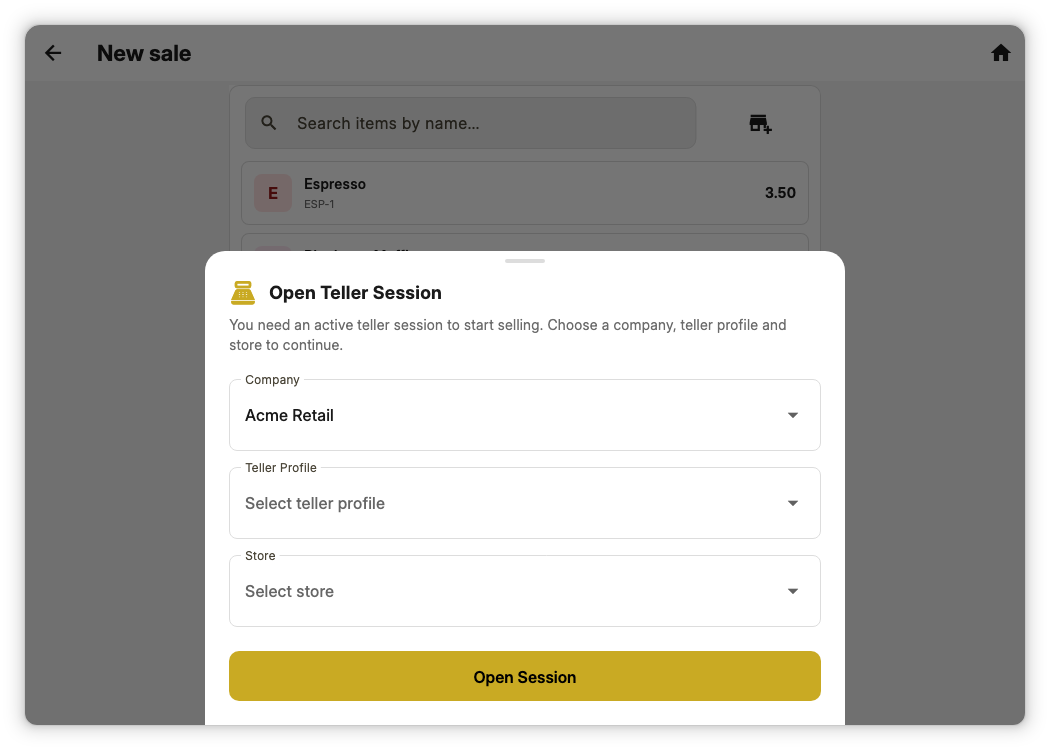
You will now see your counter name at the top of the screen. You can sell.
Tips:
- You need internet to open the till. If it says you are offline, reconnect and try again.
- If the Company, Counter or Store list is empty, ask your administrator to set them up first.
- Tap your counter name at the top to close the till at the end of the day.
2. Ring up a sale
-
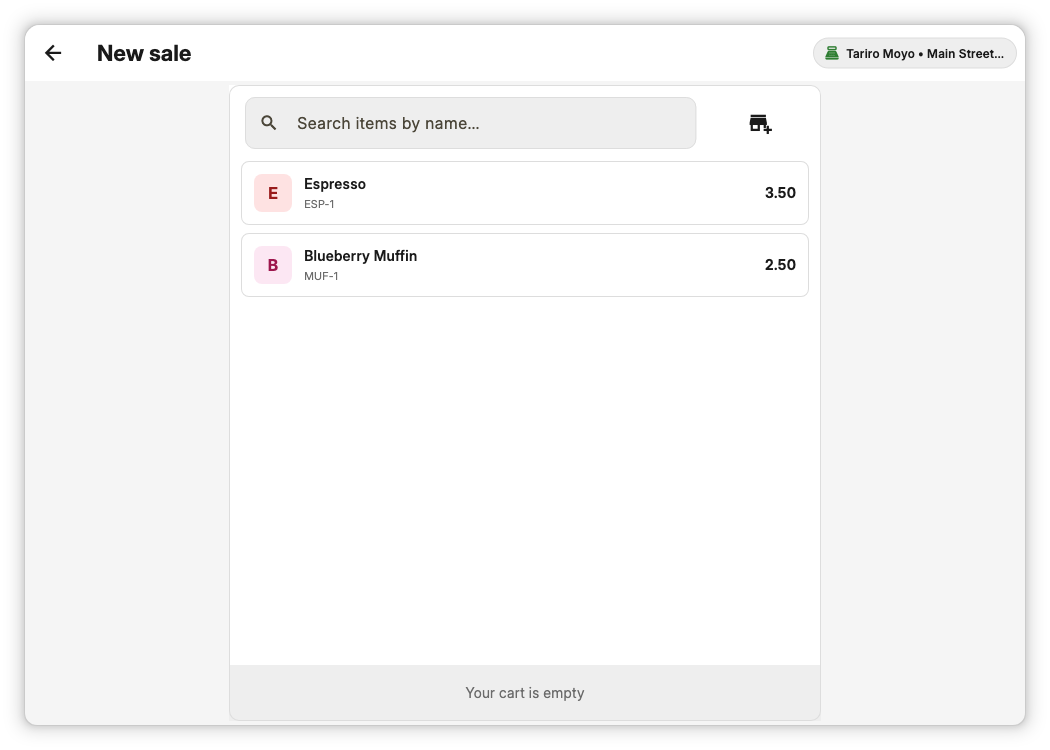
Find the product by typing its name in the search box, or tap it in the list.
-
Tap Checkout at the bottom. Your basket opens.
-
Change quantities with the - and + buttons if needed.
-
Check the customer — walk-in sales already show Default Customer. Tap it to choose a different customer.
-
Check the total, then tap Create order.
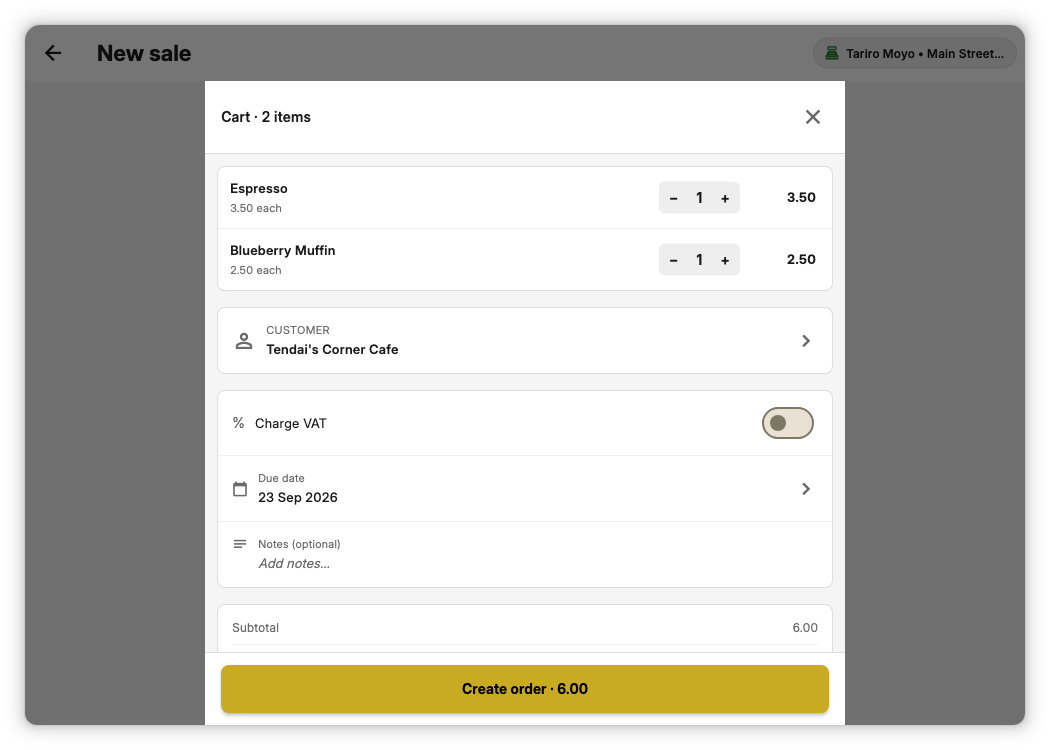
You go straight to the payment screen.
3. Add a missing product without leaving the till
-
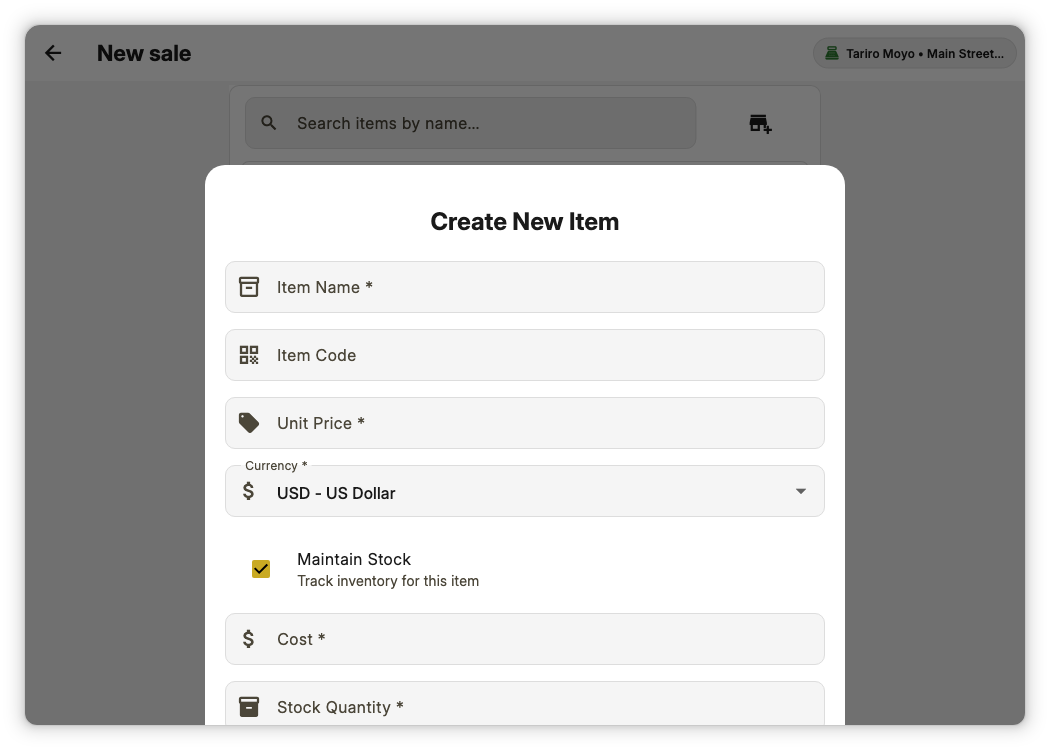
Tap the little shop icon next to the search box (Add New Item).
-
Type the name, code, price, and currency.
-
If you want to track how many are left, leave Maintain Stock on and fill in the cost and quantity. Turn it off for services.
-
Tap Create Item. It appears in your product list straight away so you can sell it.
4. Take payment
-
Check the order number and the amount owed at the top.
-
Choose how the customer is paying: Cash, Ecocash, or ZSS.
-
For mobile money, type the customer's phone number.
-
Type what they hand you in Paid. The Change and Due update by themselves.
-
Tap Submit.
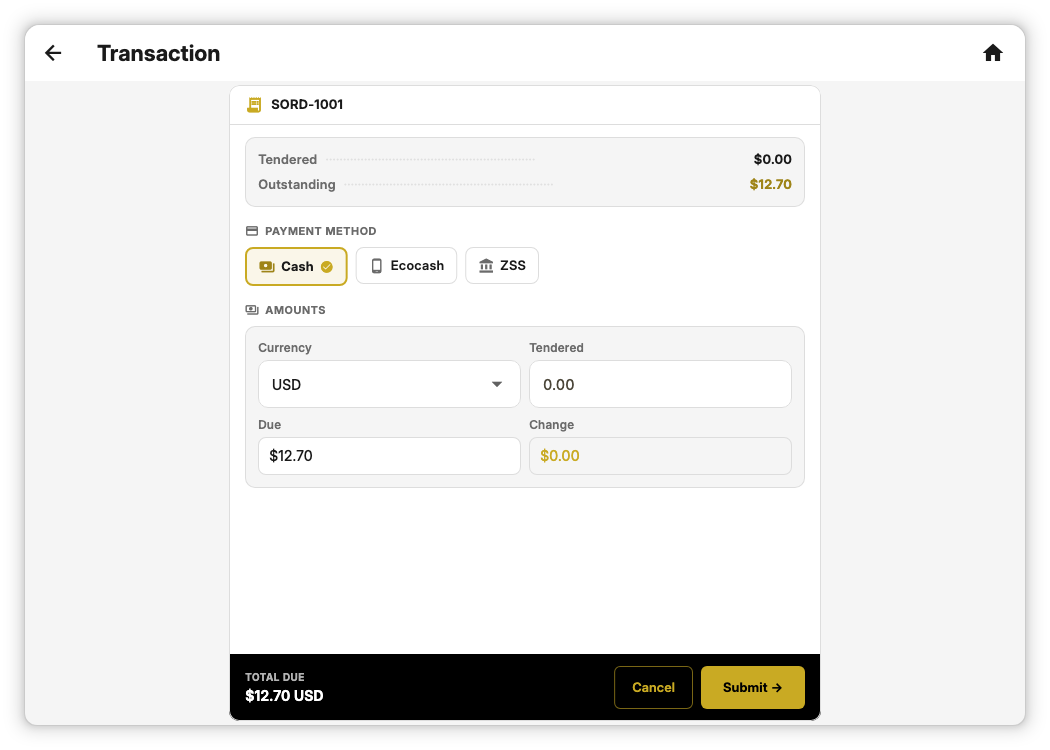
- Cash finishes immediately.
- Ecocash / mobile money may show a Checking payment status screen for up to a minute while it confirms.
- ZSS will ask for the code sent to the customer's phone — ask the customer to read it to you and type it in.
5. Part-payments and change
Sometimes a customer does not pay everything at once.
-
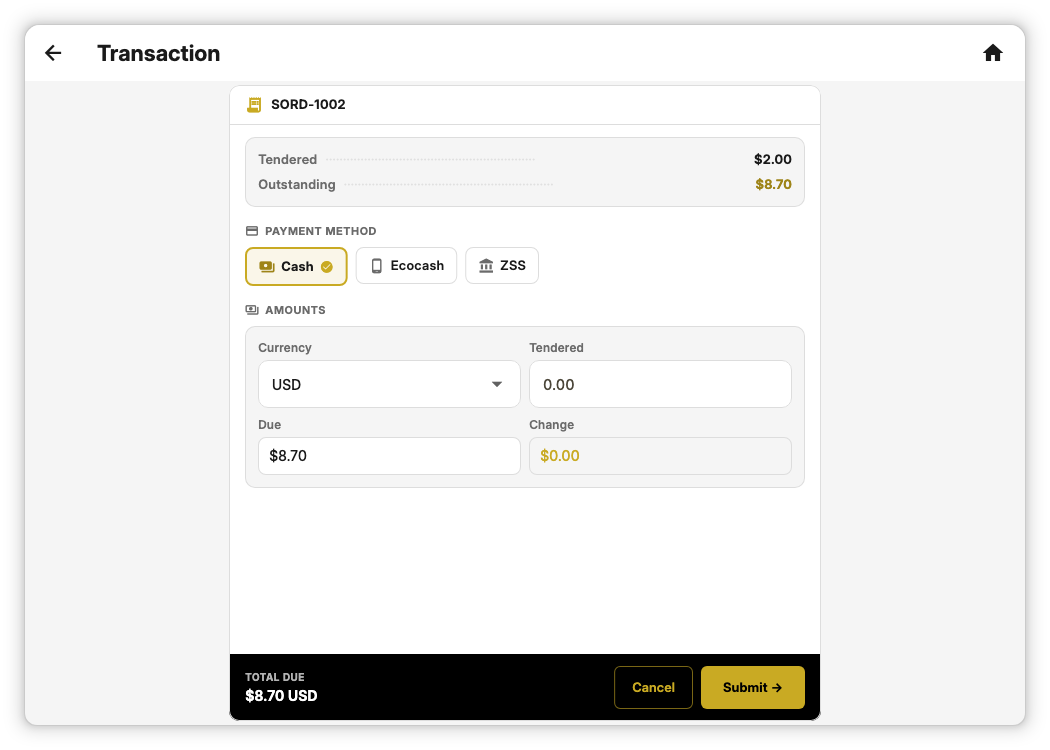
On the payment screen, look at Tendered (paid so far) and Outstanding (still owed).
-
Type what they are paying now in Paid and tap Submit.
-
If it is fully paid, the order shows PAID. If not, it stays open so you can collect the rest later.
-
Change is what you hand back in cash when they overpay.
6. Print or save the receipt
-
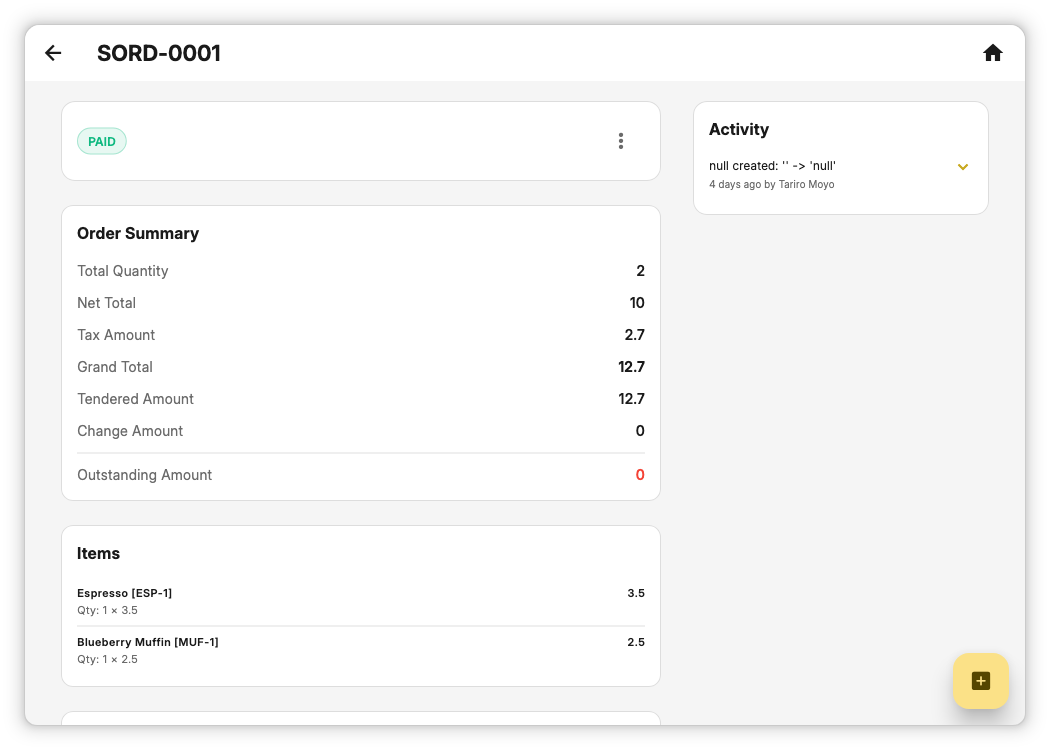
Once the order is PAID, you land on the order summary.
-
Tap the three dots menu at the top and choose Print.
-
Give the slip to the customer.
Quick help
| Problem | What to do |
|---|---|
| Cannot sell — a till form is blocking the screen | Fill in Company, Counter and Store, then tap Open Session. |
| Product list is empty | Search a different word, or add the product with Add New Item. |
| Create order button is grey | Add at least one product and make sure a customer is selected. |
| Payment will not go through | Choose a payment method, type a number in Paid, and add the phone number for mobile money. |
| Change looks wrong | Change = Paid minus Outstanding. If they paid less than owed, change is 0 and the rest stays owed. |
| Nothing prints | Check the printer. If internet is down, ask your administrator to switch you to the small till-slip format which works offline. |
What next?
- Add products and stock: see Inventory and Stock.
- Set up counters, receipts and users: ask your administrator.