Getting Started — Create Your Account and Set Up Your Business
Who this is for: Shop owners and business administrators setting up Velocity Business for the first time.
This guide shows you how to create your login, confirm your phone, register your business, and sign in every day.
What you need before you start
- A mobile phone number that can receive SMS texts — this will be your username.
- An email address.
- A password (at least 6 characters) — pick something you will remember.
- Your business name and the currency you trade in (for example USD).
- Internet connection for signing up and signing in.
A few words we use in the app:
- Verification code — a 6-digit number we text to your phone to prove it is really you. You only do this once on each new phone or computer.
- Active business — the shop whose sales and stock you are looking at. If you own more than one shop, you pick which one is active.
1. Create your account
This is your personal login. You will add your business in the next step.
-
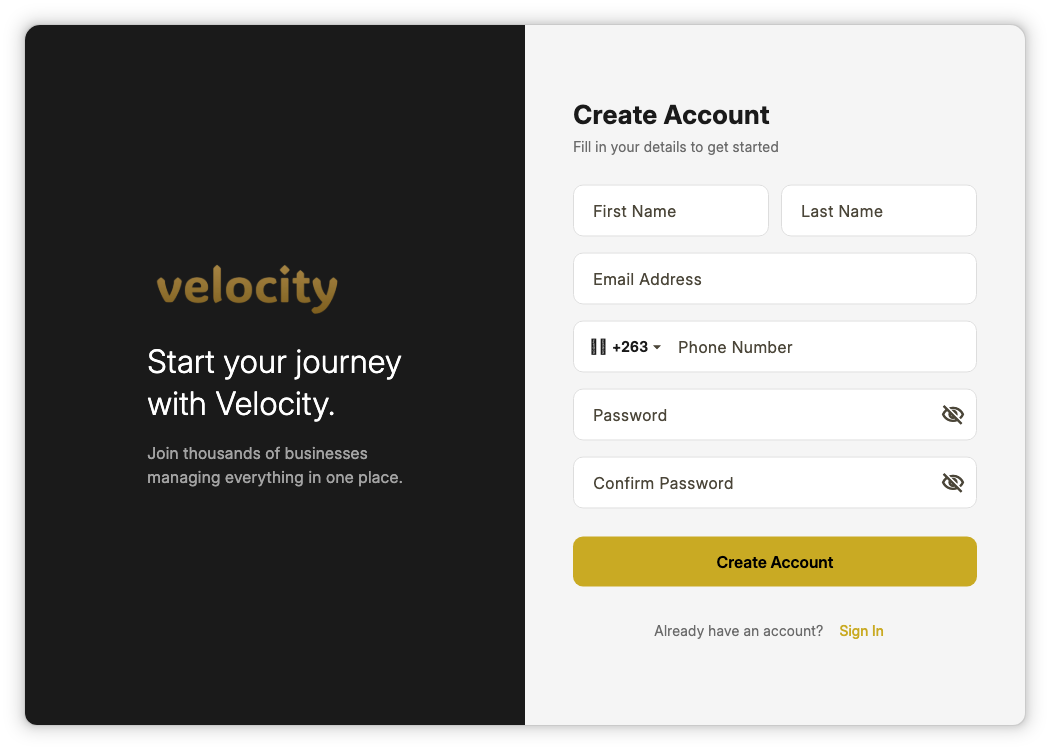
Open Velocity Business. Tap Register at the bottom of the sign-in screen.
-
Fill in your first name, last name, email, phone number, and password.
-
Tap Create Account.
-
If this is a new phone or computer, we will text you a code — see the next step. Otherwise you go straight to setting up your business.
Tips:
- Your phone number is your username for every future sign-in, so enter it carefully. If you are outside Zimbabwe, change the country flag first.
- If you see a red message, just fix that field — nothing you typed is lost.
- Already have an account? Tap Sign In instead.
2. Enter the code we text you
-
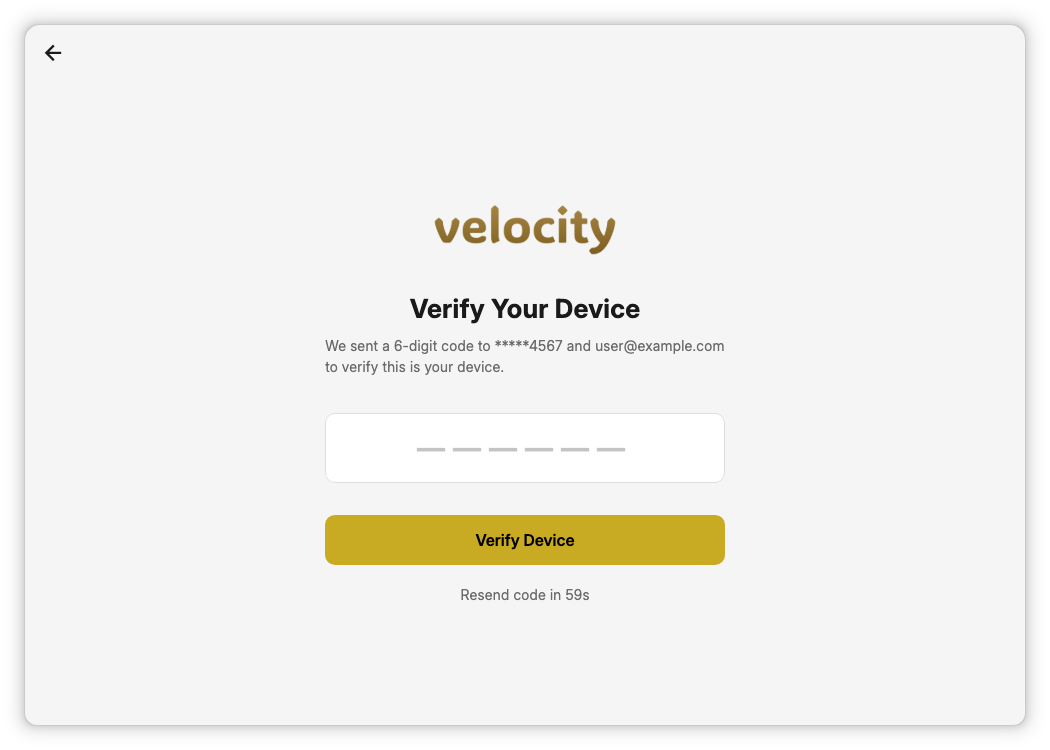
Look for an SMS with a 6-digit code.
-
Type the 6 digits and tap Verify Device.
-
Did not get the SMS? Wait for the timer to finish, then tap Resend Code.
You only do this once per phone or computer. After that, you sign in without a code.
3. Register your business
-
You will see a welcome message: "You do not have a company yet — let us fix that."

-
Tap Let Us Set Up My Company.
-
Type your business name (for example the name on your shop sign).
-
Choose the currency you trade in. USD is selected by default.
-
Tap Create Company. The app will take a moment to set things up, then open your dashboard.
Pick the currency you actually use every day, as it is used on prices and reports.
4. Switch between businesses
If you own more than one business, everything in the app — sales, stock, reports — shows the business you have selected.
-
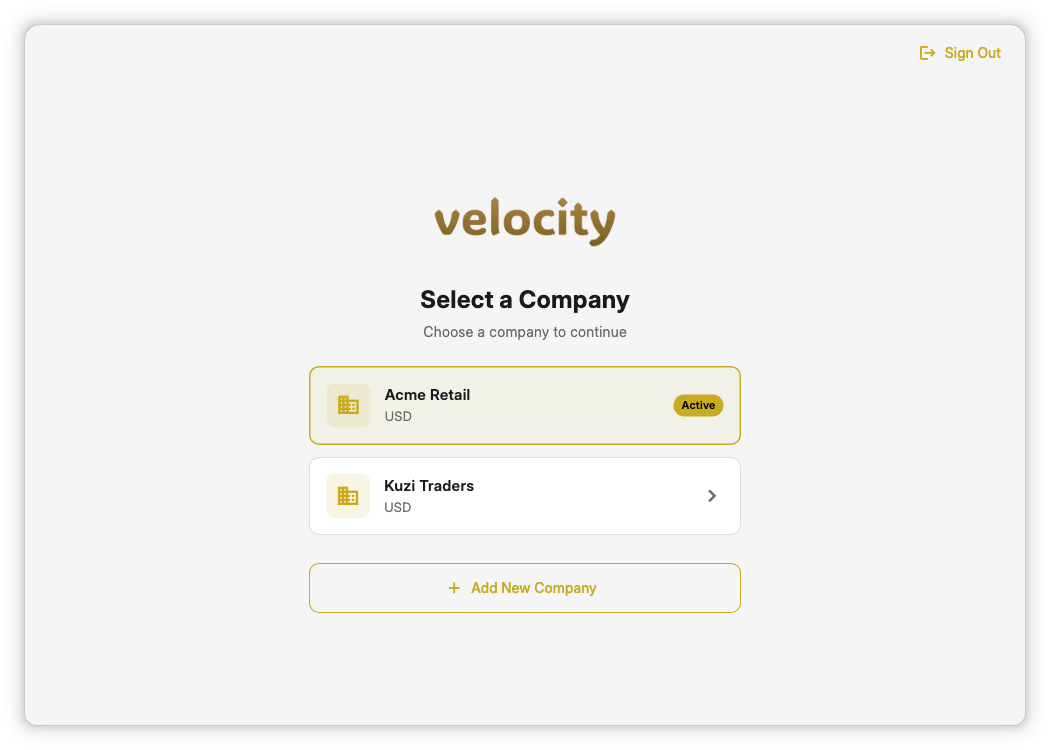
Tap your business name at the top of the More screen, or open the company list directly.
-
You will see all your businesses. The one you are using has a gold Active label.
-
Tap another business to switch to it.
-
To add another business, tap Add New Company at the bottom and fill in the same form as above.
5. Sign in every day
-
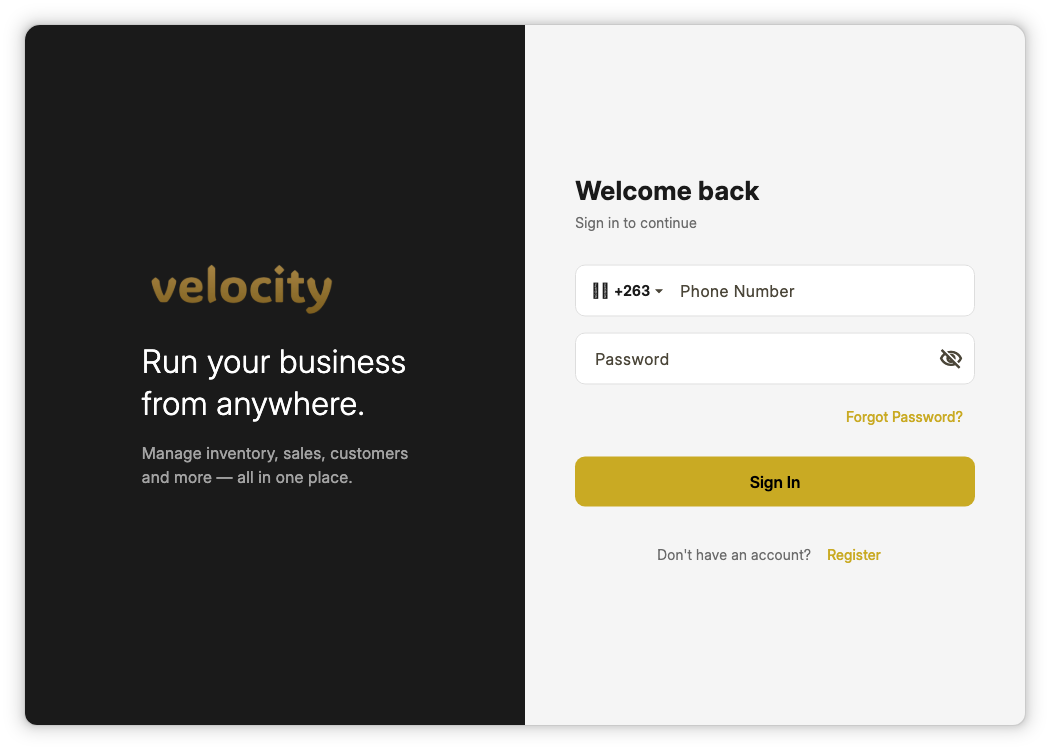
Open the app. Enter your phone number and password.
-
Tap Sign In. You go straight to your dashboard.
Tips:
- Tap the eye icon to check what you typed for your password.
- Using a private browser window or a freshly installed app? Expect a verification code — that is normal.
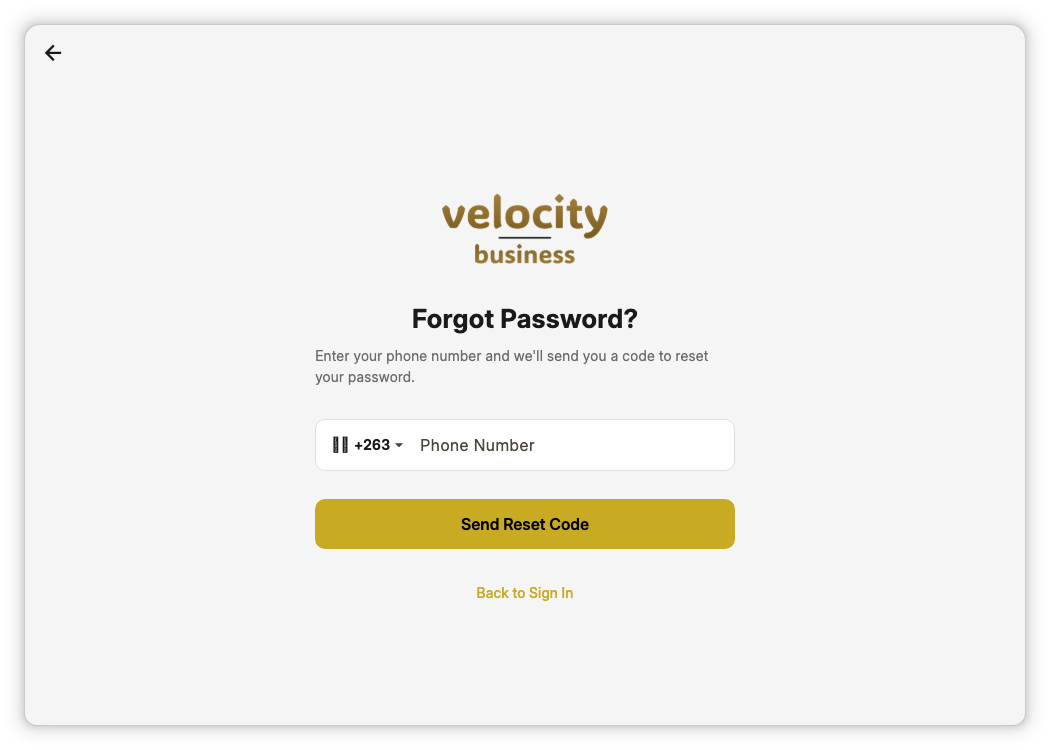
6. Forgot your password? Reset it
-
On the sign-in screen, tap Forgot Password?
-
Enter your phone number and tap Send Reset Code.
-
Type the 6-digit code from the SMS and tap Verify.
-
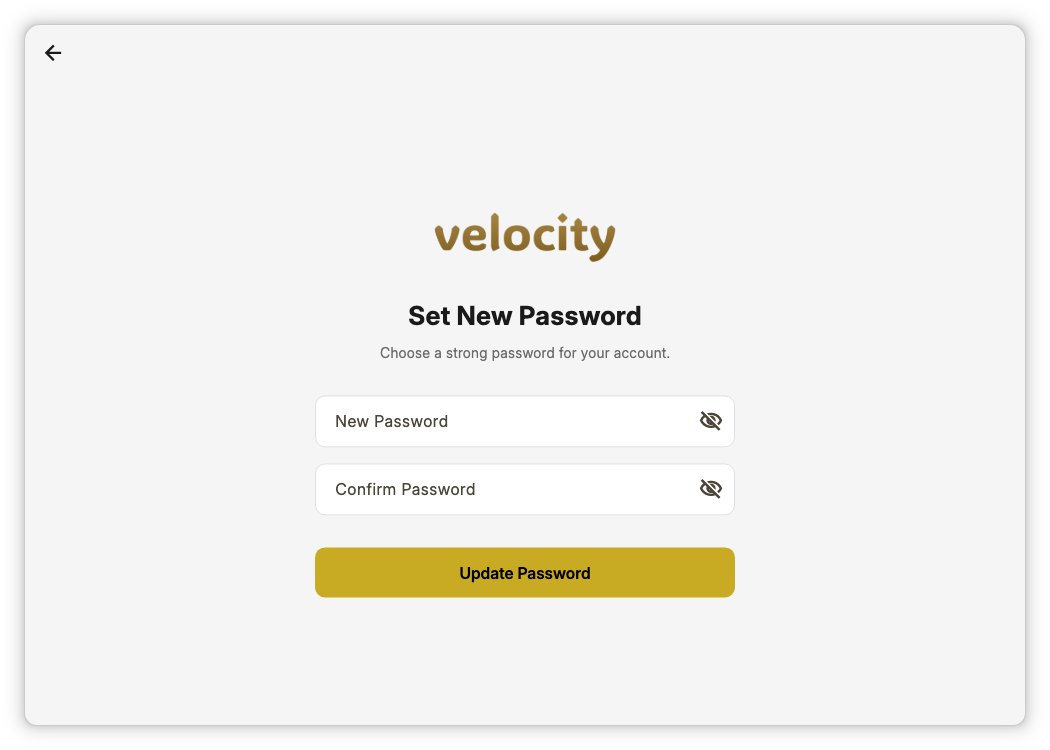
Choose a new password (at least 6 characters), type it twice, and tap Update Password.
-
Sign in with your new password.
7. Sign out
-
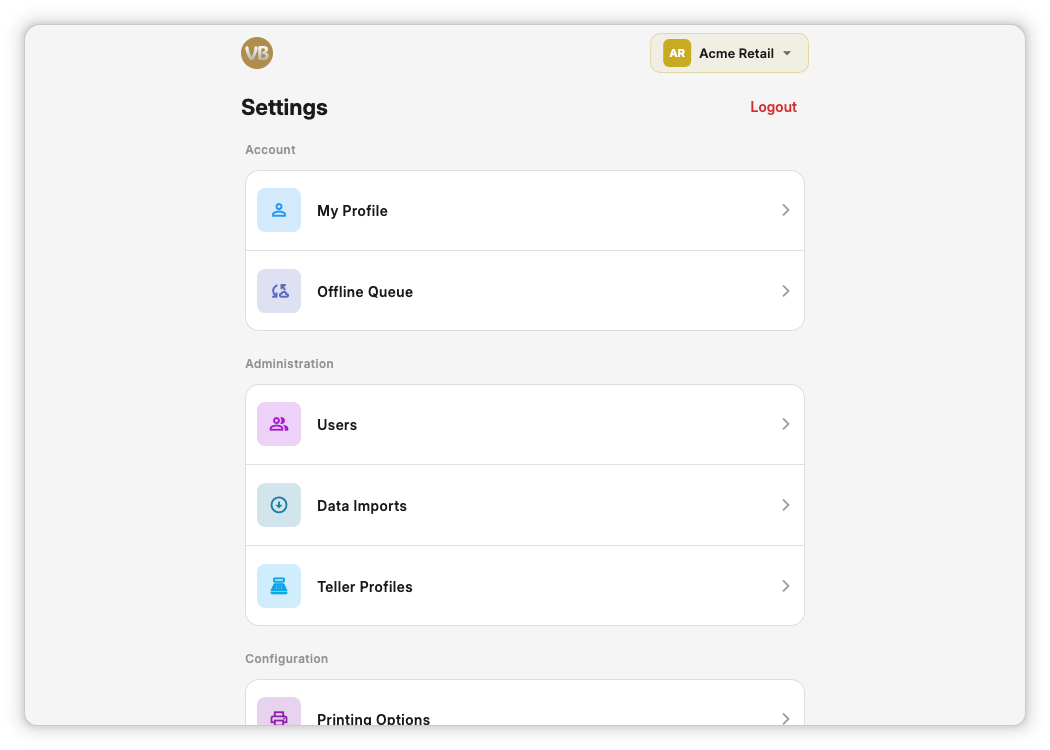
Go to More at the bottom of the screen.
-
Tap Logout in the top-right corner.
- Always sign out on a shared or public computer.
- Signing out does not delete anything — all your sales and stock are saved.
8. If the app asks you to update
Sometimes the app will show an Update Required message when you open it.
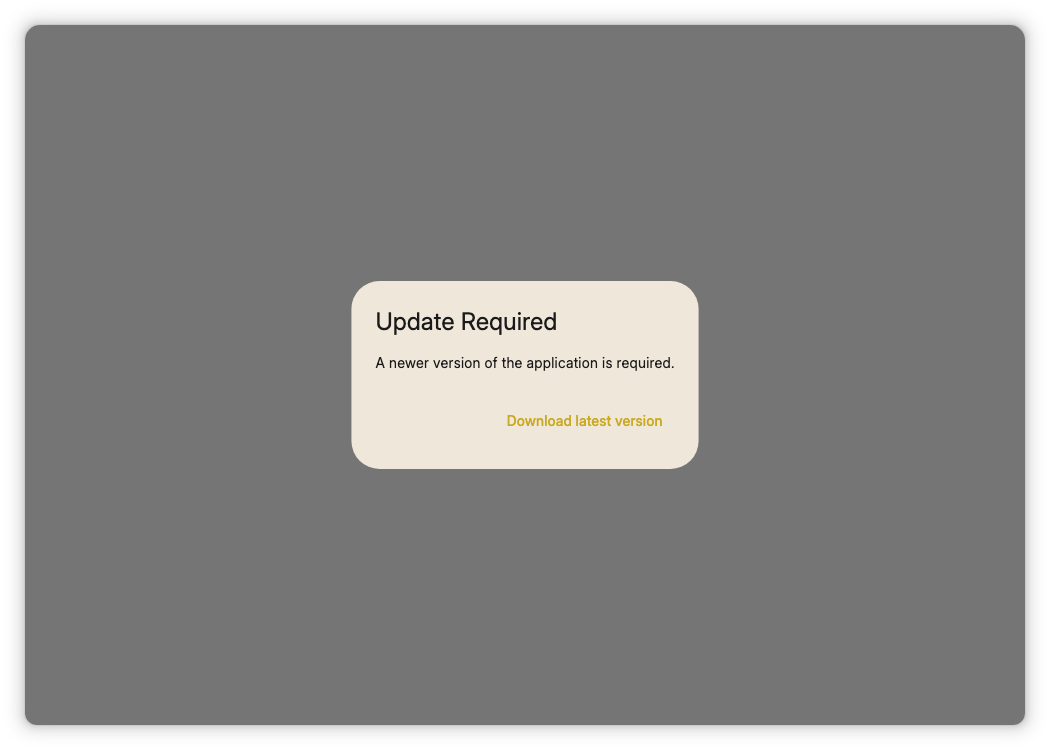
- On a computer browser: tap Refresh application.
- On a phone: tap Download latest version and install it.
You must update before you can continue — this keeps your app in step with the system.
Quick help
| Problem | What to do |
|---|---|
| Red text under a field says Required or Invalid | Fill in that field correctly, then try again. |
| No SMS code arrives | Wait for the timer, tap Resend Code, and check the phone number shown on screen is yours. |
| Invalid credentials when signing in | Check your password with the eye icon. If it still fails, reset it (step 6). |
| Your business list is empty | Make sure you signed in with the right phone number, or ask your administrator to add you. |
| App stuck on Loading... | Wait a moment for a slow connection, then try again. |
What next?
- Make a sale: see Point of Sale.
- Add stock and products: see Inventory and Stock.