Stock and Products — Inventory and Stock
Who this is for: Shop owners, administrators, and anyone who manages products, shops, suppliers, and orders from suppliers.
This guide shows you how to add products, add shops, record goods you receive, move stock between shops, add suppliers, and order from suppliers.
What you need before you start
- Your business must already be set up.
- Some actions (for example new products or orders) may need approval from a manager before they take effect — if a record looks locked or read-only, it is waiting for approval.
1. Add and manage products
-
Open Inventory, then Items.
-
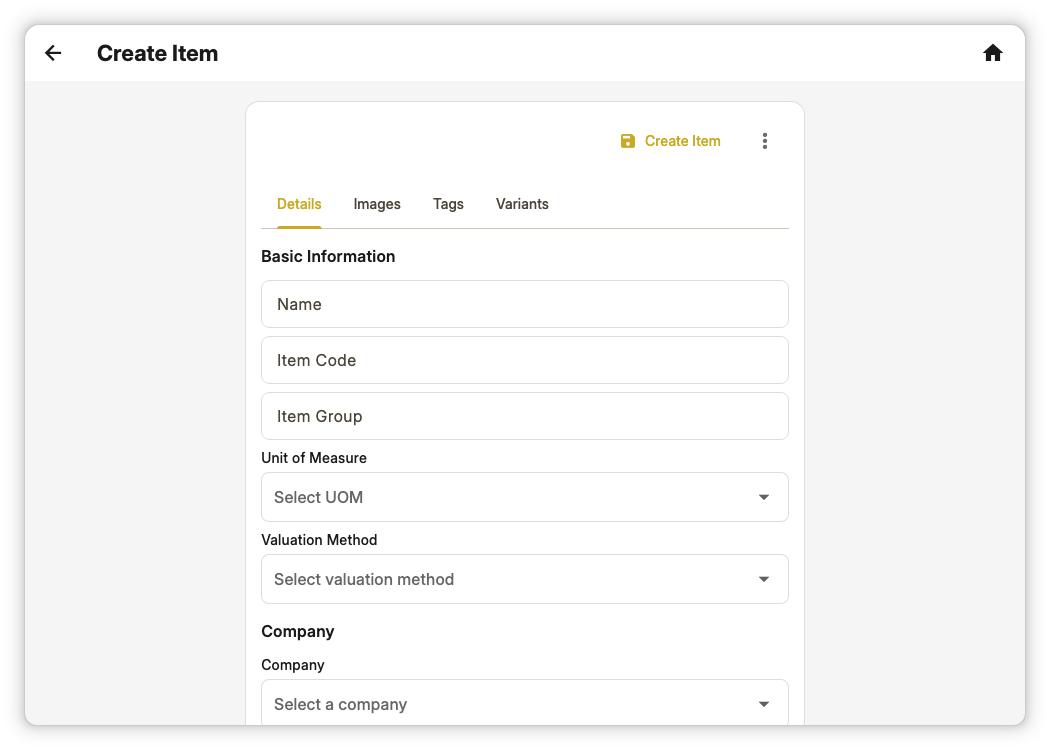
Tap New Item.
-
Fill in the Name and Item Code (for example a SKU), the price and currency.
-
If you want to track how many are left, leave Maintain Stock on and fill in the opening quantity and cost. Turn it off for services.
-
Tap Create Item.
You can later open the product to change it or add photos. New products may need a manager to approve them first.
2. Add your shops and warehouses
A store is each place that keeps stock — for example each branch or warehouse.
-
Open Inventory, then Stores.
-
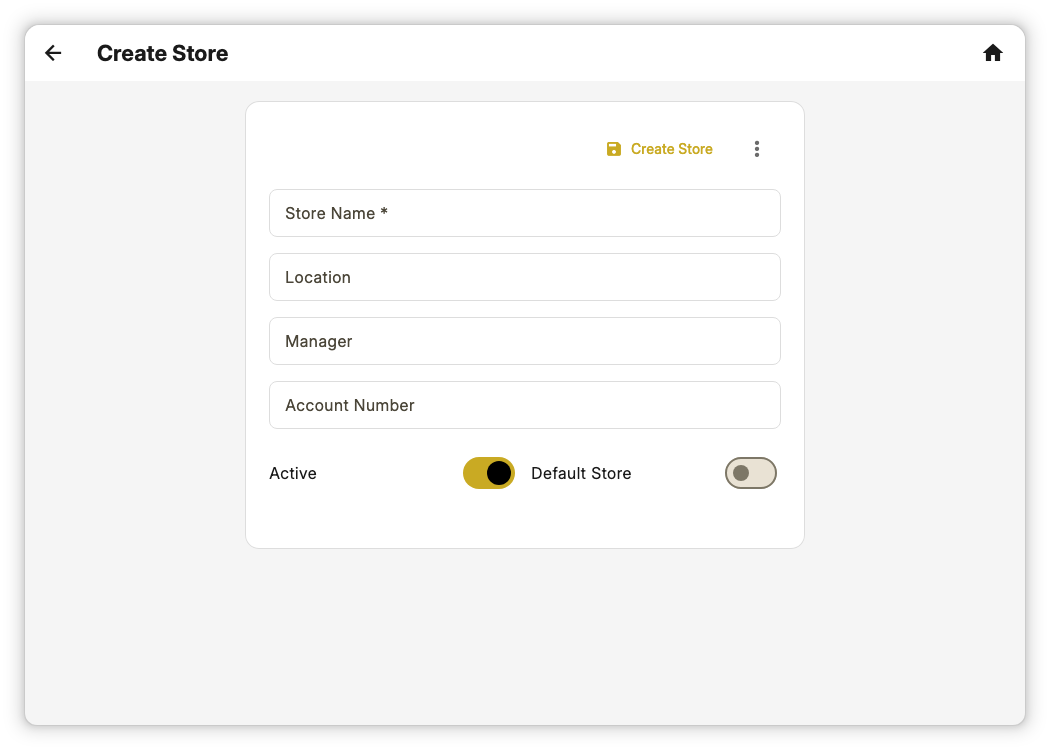
Tap to add a new store.
-
Type the Store Name (required). You can also add the location, manager, and account number.
-
Leave Active on so the shop appears at the till.
-
Tap Create Store.
If the new shop does not appear at the till, check it is Active and approved by a manager.
3. Record goods you receive
When new goods arrive from a supplier, record them so your stock numbers stay correct.
-
Open Inventory, then Stock Entries.
-
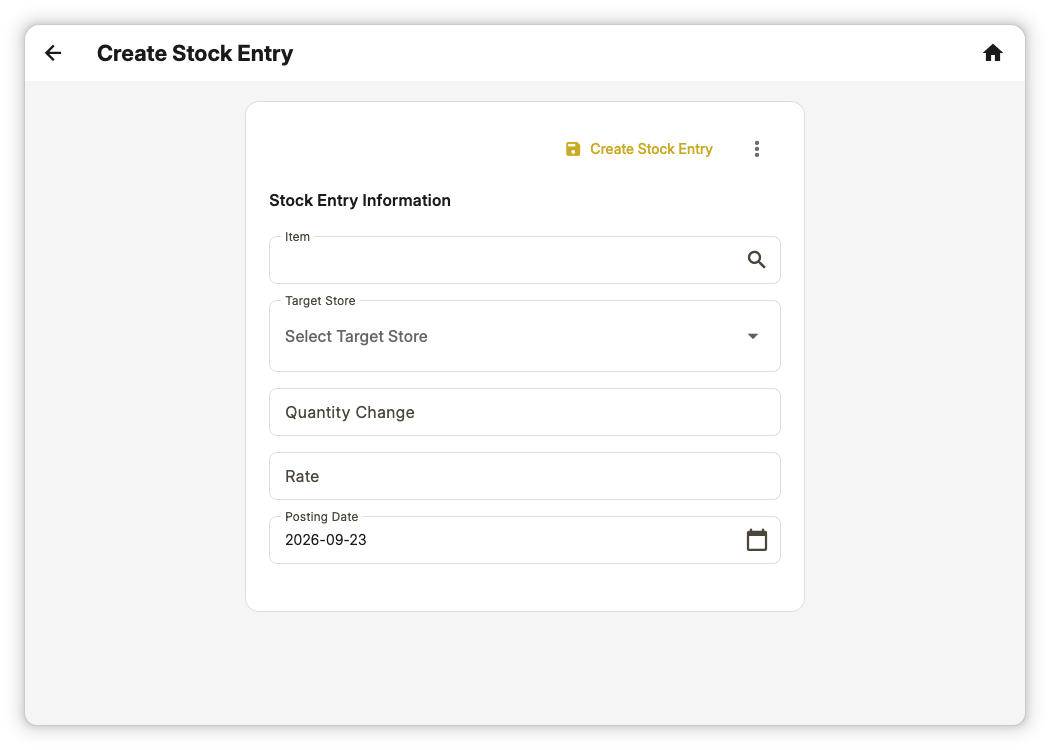
Tap to add a new entry.
-
Choose the product and the shop it goes into.
-
Type the quantity (use a minus number for damaged or written-off goods) and the unit cost.
-
Check the date, then tap Create Stock Entry.
Stock numbers update once the entry is approved (if approval is needed).
4. Move stock between shops
-
Open Inventory, then Stock Transfers.
-
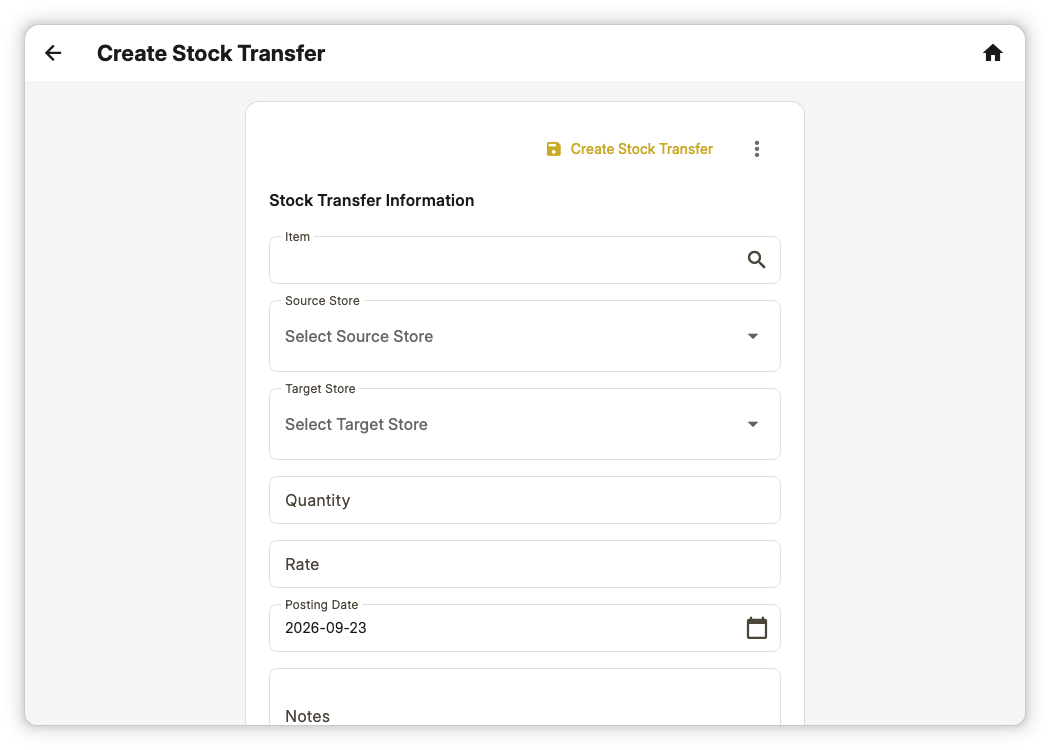
Tap to add a new transfer.
-
Choose the product, the shop it leaves and the shop it goes to.
-
Type the quantity and unit cost, check the date, and tap Create Stock Transfer.
The two shops update once the transfer is approved.
5. Add suppliers
-
Open Inventory, then Suppliers.
-
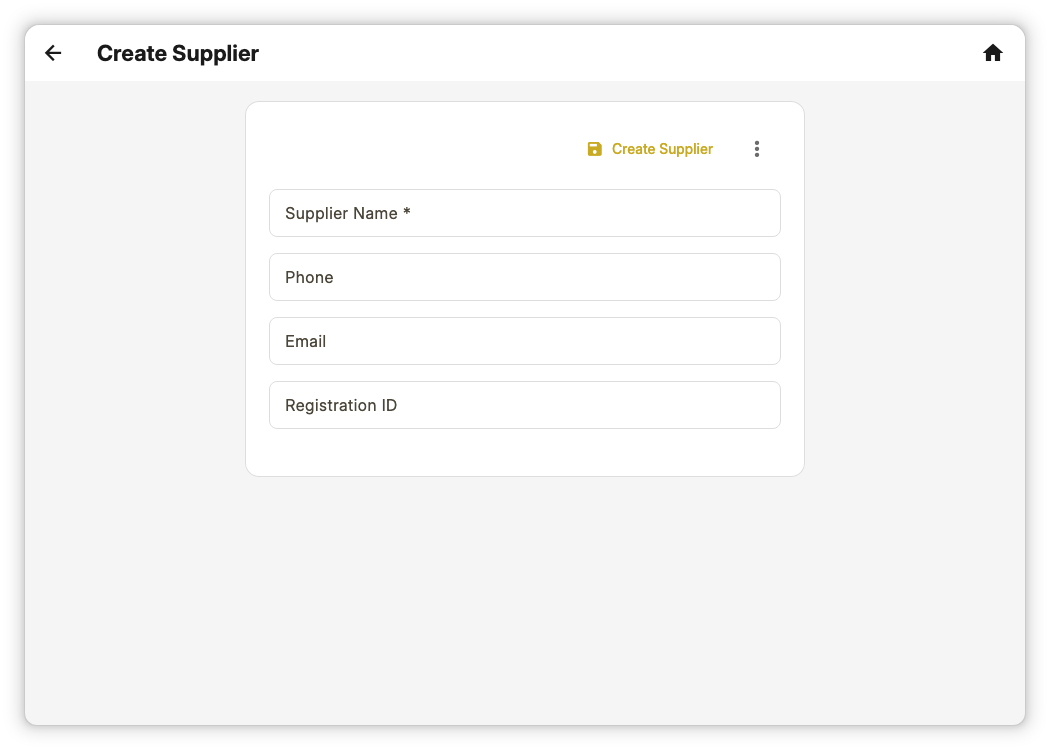
Tap to add a new supplier.
-
Type the supplier name. Phone, email and registration number are optional.
-
Tap Create Supplier.
New suppliers may need approval before you can order from them.
6. Order from a supplier
-
Open Inventory, then Purchase Orders.
-
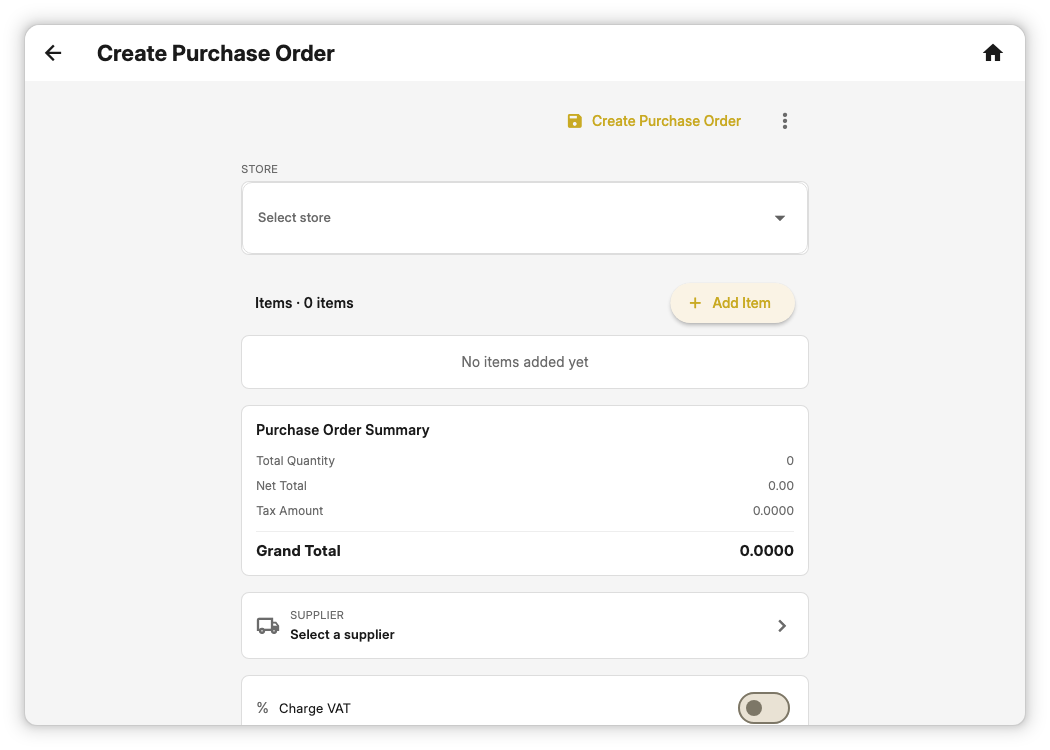
Tap to add a new order.
-
Choose the shop the goods will go to and the supplier.
-
Tap Add Item for each product you want, with quantity and price.
-
Check the totals, then tap Create Purchase Order.
A manager approves the order before it affects stock.
Quick help
| Problem | What to do |
|---|---|
| Product will not save | Enter both a Name and an Item Code, and pick your business. |
| Cannot see stock quantity fields | Turn Maintain Stock on. |
| New shop does not appear at the till | Make sure Active is on and it has been approved. |
| Supplier missing when ordering | The supplier may still be waiting for approval — approve it, then try again. |
| Order will not submit | Pick a shop, supplier and currency, and add at least one product. |
| A record is locked or read-only | It is waiting for manager approval. |
What next?
- Sell at the till: see Point of Sale.
- Approve stock and orders: ask your manager or administrator.